USB Drive Not Responding Windows 10: Fix USB Storage Issues
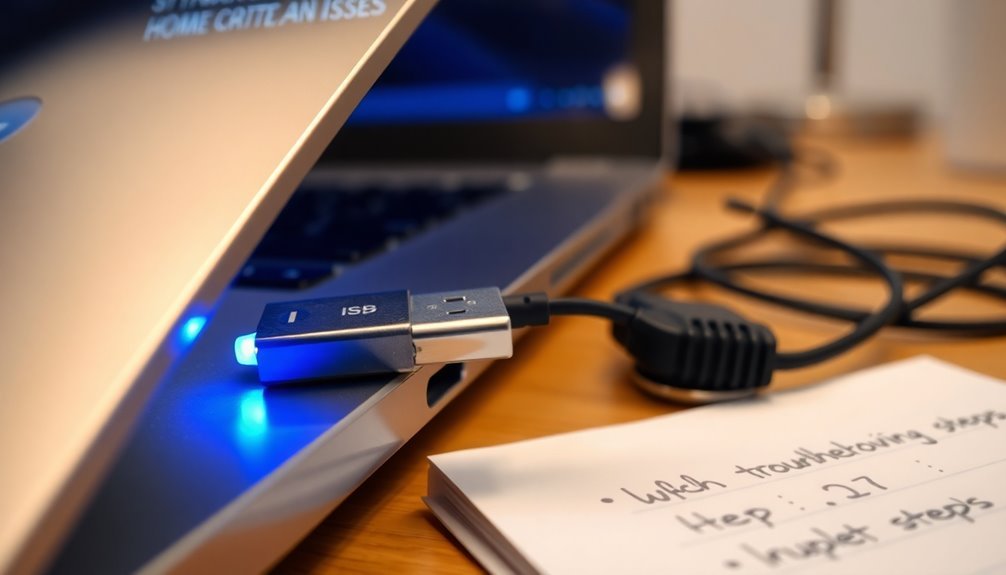
If your USB drive isn’t responding in Windows 10, start by checking the hardware connections and looking for any physical damage. Next, you can troubleshoot drivers through Device Manager by either updating or uninstalling devices that may be causing issues.
Additionally, adjusting the USB power settings can help prevent automatic shutdowns of the drive. Running the CHKDSK command is also a good step to repair any file system errors.
If you encounter common error messages, understanding what they mean can help guide your next steps. There are many other actions you can take to effectively resolve USB storage issues.
Causes of USB Drive Not Responding in Windows 10
If you’re experiencing issues with a USB drive not responding in Windows 10, you’re not alone. This frustrating problem can occur for a number of reasons.
One common cause is a damaged USB port; if the port isn’t functioning properly, your device may not get detected. Similarly, a faulty cable can interrupt data transmission, resulting in connection failures. Physical defects in the USB drive itself may also prevent it from being recognized by your computer.
Additionally, an insufficient power supply or loose connections can lead to intermittent responsiveness. Always ensure that your USB drive is securely plugged into the port. To address this, you can try PowerShell troubleshooting by accessing it through the search bar and running a device diagnostics command.
File system corruption or incompatibility can also cause your USB drive to stop responding. If you’ve ejected the drive improperly, it could be in a RAW state, rendering it invisible to Windows Explorer.
Other conflicts, such as outdated Windows updates or incorrect drive letter assignments, may further complicate matters.
Finally, environmental factors like power instability or interference from other devices can significantly impact USB drive performance. By addressing these potential issues, you can improve the chances of restoring your USB drive’s functionality in Windows 10.
Driver and Controller Troubleshooting Steps
If you’re experiencing issues with your USB controllers, one effective troubleshooting step is to disable and then re-enable them. To do this, open Device Manager, right-click on each USB controller, and select Disable device, then Enable device. This simple action can help reset unresponsive USB ports. Additionally, you may want to adjust power management settings to prevent the system from turning off USB devices to save power, which can also cause issues.
After performing these steps, it’s crucial to verify the functionality of your USB devices. If you continue to experience problems, consider using Windows System Restore to revert your system to a previous state when everything was working properly.
It’s best to avoid using third-party driver tools, as they can lead to further issues. Instead, focus on downloading drivers directly from the official manufacturers to ensure compatibility and stability.
Managing USB Power and Selective Suspend Settings
Optimize USB Power Management with Selective Suspend Settings for Better Connectivity
USB Selective Suspend is a powerful feature designed to enhance your device’s battery life by putting idle USB devices into a low-power state. However, this feature can sometimes lead to connectivity issues with certain peripherals.
If you’re encountering such problems, adjusting your USB settings could significantly improve your experience.
Steps to Manage USB Selective Suspend Settings:
- Open Control Panel:
- Navigate to Hardware and Sound and select Power Options.
- Select Power Plan:
- Choose your active power plan and click on Change plan settings.
- Advanced Power Settings:
- Click on Change advanced power settings.
- Expand USB Settings and modify the USB selective suspend setting to meet your needs.
- Device Manager Adjustments:
- Access Device Manager by right-clicking the Start menu.
- Locate Universal Serial Bus controllers.
- Uncheck the option that allows the system to save power to these devices.
- Command Prompt Configuration:
- For advanced users, you can use the Command Prompt to disable selective suspend based on your power source for better control over USB power management.
While disabling USB selective suspend may lead to increased power consumption, it can also help resolve common connectivity issues.
By experimenting with these settings, you can find the perfect balance between energy savings and optimal device performance.
For more tips on USB power management and troubleshooting connectivity issues, keep exploring our resources!
Disk and File System Repairs for USB Drives
When your USB drive experiences issues, performing disk and file system repairs is crucial for restoring its full functionality.
To start, utilize the CHKDSK command by running `chkdsk X: /r` in the Command Prompt (replace X: with your USB drive letter) to identify bad sectors and recover valuable data. If you prefer a user-friendly option, the Windows Error Checking tool can assist you. Access it via your drive’s Properties under Tools > Check.
If your USB drive isn’t recognized by your computer, be sure to check Disk Management to reassign a drive letter, which can help resolve any conflicts preventing your drive from being detected.
For more severe cases of corruption, consider employing reputable third-party software such as DiskGenius or Disk Drill to recover lost files before undertaking any repair attempts.
Keep in mind that while formatting can be a fast solution for serious corruption, it will erase all existing data on the drive. Therefore, formatting should be your last resort after exhausting all other file recovery options.
Common USB Recognition Error Messages and Their Interpretation
USB recognition error messages can be quite inconvenient, often hindering the performance of your devices. By understanding these error messages, you can better diagnose the issues affecting your USB drive.
Here are some common USB recognition error messages and their meanings:
- “USB Device Not Recognized”: This message indicates that your operating system is unable to recognize the connected USB device, which could be due to hardware issues or a faulty connection.
- “Unknown USB Device (Device Descriptor Request Failed)”: This error typically suggests that there are hardware faults or that the USB driver may be corrupted, preventing proper recognition.
- Yellow Exclamation Marks in Device Manager: These symbols indicate potential recognition or driver issues that require attention, signaling that your USB device mightn’t function as expected.
- “The Last USB Device You Connected to This Computer Malfunctioned”: This error message highlights possible driver conflicts or connectivity failures that may need troubleshooting.
- USB Drive Not Appearing in File Explorer: If your USB drive isn’t visible in File Explorer, it may be due to issues with drive letter assignment or partition errors that need resolving.
Additional Tips for Fixing USB Storage Issues on Windows 10
If you’re experiencing USB storage issues on your Windows 10 device, the first step is to check the drive letter through Disk Management.
Conflicting drive letters can cause your USB drive to become unrecognized, so changing the drive letter may resolve this problem and restore visibility.
Should the USB drive still be unresponsive, you might need to format it.
However, be sure to attempt data recovery first using reliable tools like Recuva, as formatting will erase all data on the drive.
Additionally, don’t overlook the importance of resetting your USB controllers via Device Manager.
It’s also advisable to review your BIOS settings to ensure that USB support is enabled.
Lastly, consider modifying your power settings to disable “Selective Suspend,” which can improve the stability of your USB devices.
How to Use Device Manager for USB Troubleshooting
If you’re experiencing issues with your USB devices, utilizing Device Manager is an effective troubleshooting method to diagnose and resolve the problems.
Follow these easy steps to navigate Device Manager for USB troubleshooting:
- Open Device Manager: You can do this by typing “devmgmt.msc” in the Run command dialog or by using the search bar in Windows.
- Locate Universal Serial Bus Controllers: Scroll down in the Device Manager window and expand the section labeled “Universal Serial Bus controllers.”
- Identify Problematic USB Devices: Look for any USB devices that show signs of issues, such as yellow exclamation marks or the label “Unknown device.”
- Troubleshoot the Device: Right-click on the device that’s causing trouble. You’ll see options to either “Update driver” or “Uninstall device.”
- Reinstall the Driver: If you choose to uninstall the device, make sure to reboot your computer afterward; this will prompt Windows to automatically reinstall the necessary drivers for your USB device.
By following these straightforward steps, you can refresh your USB connection and potentially fix common USB issues without needing advanced technical support.
Troubleshooting USB problems has never been easier with Device Manager!
Steps to Perform Chkdsk on USB Drives
Performing CHKDSK on your USB drive is crucial for diagnosing and correcting file system errors that can lead to various problems. To begin, open Command Prompt with administrator privileges. Enter the command `chkdsk E: /f` (replace E: with the letter corresponding to your USB drive) and hit Enter.
The `/f` parameter is used to fix errors, while the `/r` parameter helps identify bad sectors and recover any readable data. If your USB drive is currently in use, you’ll receive a prompt to schedule a scan the next time your computer reboots—press Y to confirm and restart your PC.
Once CHKDSK is initiated, the duration of the scan can vary based on the size of your drive and the amount of errors found. Keep an eye on the progress and take note of the output in Command Prompt once the operation is complete for a summary of any errors detected.
If problems continue, you may want to run CHKDSK again or consider utilizing data recovery software. Always remember to back up essential files before running the utility to safeguard your data against potential loss during the repair process.
This guide on how to use CHKDSK effectively will help ensure your USB drive remains in good working condition.
Frequently Asked Questions
How Can I Safely Eject My USB Drive in Windows 10?
To safely eject your USB drive in Windows 10, right-click the drive in File Explorer and select “Eject,” or use the system tray icon. Always guarantee the drive isn’t in use before disconnecting it.
Why Does My USB Drive Suddenly Become Read-Only?
When it rains, it pours. Your USB drive might suddenly become read-only due to hardware issues, file system corruption, or security settings. Consider checking physical damage, ports, and permissions to resolve the problem.
Can I Recover Deleted Files From My USB Drive?
Yes, you can recover deleted files from your USB drive. Check the Recycle Bin, use Windows File Recovery, or employ professional recovery software. Always save recovered files to a different location to prevent data overwriting.
What Should I Do if My USB Drive Is Physically Damaged?
If your USB drive’s physically damaged, check for visible issues like cracks. Consider temporary fixes or professional recovery services. Don’t attempt risky repairs if you’re unsure; it might worsen the situation and lead to data loss.
How Can I Check the Warranty Status of My USB Drive?
To check your USB drive’s warranty status, locate the serial number using Command Prompt or PowerShell. Then, visit the manufacturer’s website and enter the serial number in their warranty verification tool for accurate information.
Conclusion
In steering through the tangled web of USB drive issues, think of your device as a bridge. When that bridge is shaky, it’s essential to reinforce its structure with proper troubleshooting. By addressing driver conflicts, adjusting power settings, and performing disk repairs, you can restore connectivity and guarantee smooth data transfer. Don’t let a stubborn USB drive be a roadblock; wield these solutions like a hammer to fix the cracks and keep your digital journey on track.